
Revit Document Management: Start with a 2 hour Governance Workshop


Revit document management means running a cloud common data environment (CDE) that integrates directly with Revit, so models, sheets, and files stay versioned, permissioned, and traceable in one place. The fastest path to getting it right is picking a Revit-integrated CDE and running a short governance workshop before anyone uploads a single file. Do that, and you get a single source of truth, far fewer coordination errors, and a real audit trail instead of a shared drive full of “FINAL_v3_actually_final” files.
TL;DR:
A Revit-integrated cloud data environment should be established with clear governance, including naming conventions, folder structures, and designated administrators.
Publishing models as live cloud data, not static exports, ensures real-time collaboration, accurate metadata, and reduces the risk of outdated information.
Version control, role-based permissions, and formal review workflows are essential for managing complex teams and maintaining an accurate, traceable project history.
Proper setup and training in Revit worksharing and document workflows prevent chaos and improve team efficiency, especially for large or multi-disciplinary projects.
Smaller projects may temporarily rely on disciplined naming and shared drives, but scaling and distributed teams should adopt a full CDE with ongoing permission and workflow management.
Table of Contents
What a Revit-Friendly Cloud Document Management System Actually Does
A common data environment is the central repository where every project file, drawing, and model lives, with rules attached to who can see it, edit it, and approve it. Autodesk describes its own CDE, Forma Data Management, as the layer connecting desktop design work to cloud-based data control, and that framing holds for any serious BIM document management platform, not just Autodesk’s.
The alternative, a shared network drive or a folder full of emailed PDFs, breaks down the moment more than a handful of people touch a project. A proper BIM document management system centralizes files in a single repository, tracks every version, enforces role-based permissions, and lets anyone open IFC, DWG, or PDF files straight in the browser without hunting for the right software license.
That matters because Revit files are heavy and technical in ways a generic file share was never built to handle. A CDE built for this work typically gives you:
A viewer that reads RVT-derived metadata, not just a flat file icon
Lightweight 3D previews so a site superintendent can rotate a model without opening Revit
Native support for IFC and DWG alongside PDF, so consultants without Revit licenses still see accurate geometry
Automatic indexing that makes a sheet number or room tag searchable, not just a filename
Cloud viewing changes coordination meetings. Instead of someone screen-sharing a static PDF, the team pulls up a live 3D view and rotates around a clash while everyone watches from their own screen.
Core Features That Actually Save You Time
Every credible Revit document management platform converges on the same five capabilities, and each one solves a specific failure mode you have probably lived through.
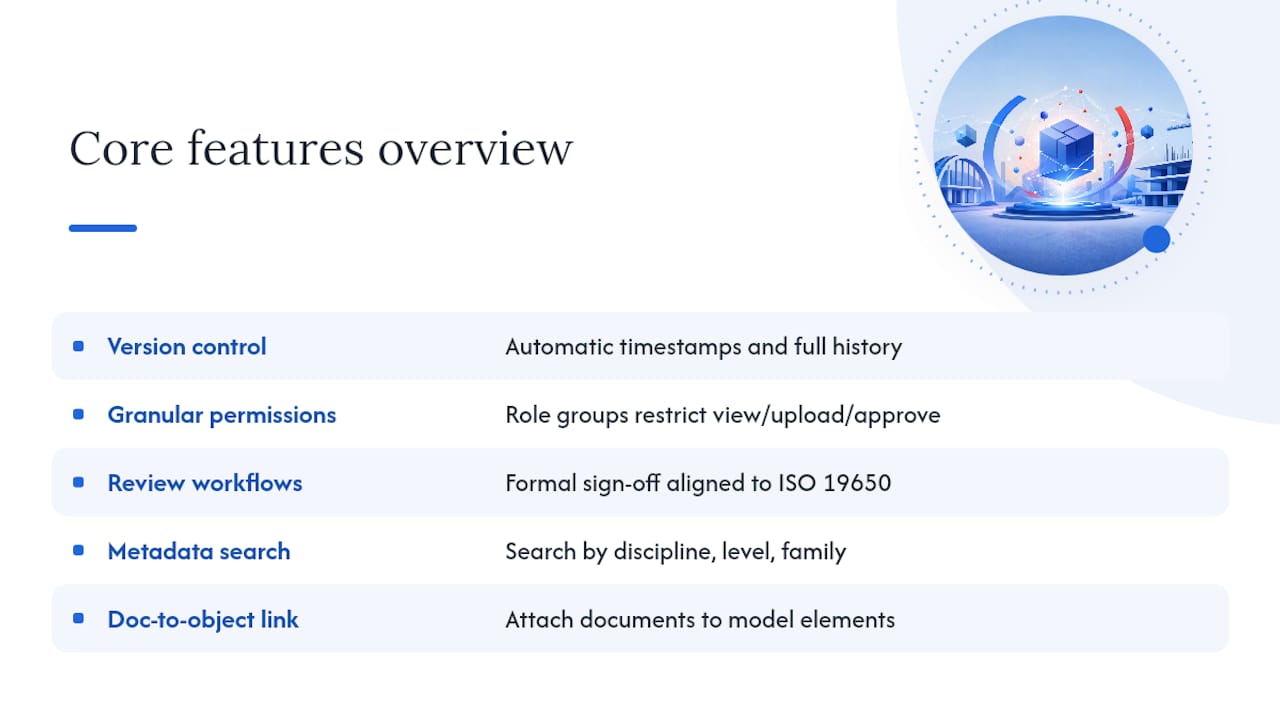
Version control with a real audit trail. Manual revision numbering (A, B, C, or v1, v2, v3 typed into a filename) collapses the moment two people edit the same drawing on the same day. A proper CDE timestamps every upload automatically and keeps the full history, so you can prove exactly which drawing set went to the contractor and when.
Granular permissions by role. Architects, structural consultants, and the general contractor should not all see the same folders. Platforms like Procore build permission groups that separate who can view, upload, or approve, which matters enormously once a project passes 20 or 30 users.
Review and approval workflows. Submittal sign-off and drawing issue approval need a formal gate, not a reply-all email thread. Procore’s workflow templates and similarly structured tools follow patterns aligned with ISO 19650, the international standard for managing information over the life of a built asset.
Metadata search and content catalogs. Instead of digging through nested folders, you search by discipline, level, or Revit family type. A shared Content Catalog also keeps standard Revit families and assets consistent across teams.
Document-to-object linking. BIMcollab lets teams attach documents directly to model elements, so a spec sheet or RFI response is tied to the actual wall or duct it concerns, not floating in a generic folder.
Pro Tip: If your platform supports document-to-object linking, use it for anything tied to a punch list item or RFI. Retrieving a document by clicking the building element beats scrolling through 40 PDFs by a mile.
How Revit Connects to a CDE Without Breaking the Model
The mechanics matter more than the marketing here. Revit does not just “upload” to a CDE the way you’d drag a Word document into Dropbox. It publishes.
Publish sheets as cloud models, not static exports. Publishing a cloud model preserves the underlying data (levels, views, parameters) so the CDE can render live 3D and let field teams inspect metadata instead of squinting at a flattened PDF.
Follow the Plans vs Project Files pattern. “Plans” is the folder where extracted, published sheet sets live as the official record. “Project Files” holds the working Revit models, linked files, and everything still in motion. Confusing the two is the single fastest way to have a subcontractor build off an outdated drawing.
Respect worksharing boundaries. A central file with multiple linked models and multiple consultant “tenants” needs permissions set at the model level, not just the folder level, or you risk someone accidentally overwriting a linked file they should only view.
Attach issues to model elements, not just sheet numbers. When a reviewer flags a clash, link the issue to the actual Revit element. It survives sheet renumbering; a comment on “Sheet A-101” does not.
DPR Construction’s rollout of BIM 360 Docs found that publishing model-derived views for field teams, rather than PDFs alone, increased confidence and adoption on-site, because crews could actually interrogate the model instead of trusting a flat printout.
Pro Tip: Before you publish anything company-wide, read up on how Revit worksharing actually structures central and local files. Publishing a cloud model on top of a poorly managed worksharing setup just moves the chaos online.
The Governance Workshop That Prevents the “Dumping Ground” Problem
Software rarely fails on its own — coordinating efforts effectively often depends on good tools to coordinate visualisation to power your team projects. Projects fail when nobody agreed on naming conventions, folder structure, or who owns the platform before the first file landed. A CDE without governance turns into an unfindable dumping ground within weeks, and Autodesk University’s own implementation case study makes that point directly.
The fix is a short, structured session at kickoff, not a lengthy manual nobody reads.
Run a two-hour foundational workshop with design leads, contractor representatives, and a client rep in the room. Lock down naming conventions, folder roles, publish cadence, and, critically, who is the project admin.
Assign a dedicated VDC or BIM admin whose job includes maintaining templates, auditing folder structure monthly, and fixing broken permissions before they cascade.
Define the publish cadence in writing. Weekly on Fridays, or tied to milestones. Ambiguity here is what causes teams to publish whenever they feel like it, which destroys the audit trail’s usefulness.
Build the three core templates once: a folder layout, a Revit Project Browser scheme, and a naming standard, then save them into the company template so every new project starts governed instead of improvised.
Pro Tip: Document the workshop’s decisions and store that governance pack inside the CDE itself, in a folder everyone can find. A rule nobody can locate is a rule nobody follows.
Project Setup Checklist: Folders, Transmittals, and the Project Browser
Whether you’re migrating an old project or starting fresh, the setup sequence is the same. Get this right once and every future project inherits it.
Decide upfront what gets archived (superseded drawings, abandoned design options) versus what becomes the official published record.
Build a folder structure with distinct Plans, Project Files, Record Set, and Progress Set folders, so nobody confuses a working file with a contract document.
Use a controlled Revit Project Browser scheme, Discipline_Phase_Workflow is a common one, saved into the shared template so every office produces sheets the same way.
Pair that with shared parameters across the team to keep sheet extraction consistent when multiple offices or consultants publish into the same project.
For batch publishing, tools like the open-source Transmittal add-in automate sheet revision tracking and generate transmittal reports formatted around ISO 19650 naming, cutting down manual PDF renaming.
Good project information setup, tracked properly inside Revit, also feeds directly into how consistently your published document sets come out across a large team.
A Practitioner’s Checklist for Getting Teams Up to Speed
Most rollout failures trace back to skipped governance, not weak software. The checklist that actually holds up on real projects: run the naming and permissions workshop before kickoff, name a single admin who owns the folder structure, agree a publish cadence in writing, and audit permissions monthly rather than waiting for a breach to force the conversation.

Teams new to worksharing tend to underestimate how much of this is a training problem, not a technology one. A short, structured course on Revit worksharing cuts weeks off a rollout because staff stop guessing at central file behavior and permission conflicts in real time on a live project. S15studio’s training, led by Autodesk Certified Trainer Steve Fagan, focuses on exactly this kind of practical, project-based skill building rather than abstract theory.
When You Actually Need a Formal CDE (And When You Don’t)
Multi-discipline projects, distributed teams, or anything over a few months justify a full CDE. A small, single-office job on a tight budget can run on disciplined naming and a shared drive for now. Scale the tooling up as the team and project complexity grow, not before.
Getting Your Team Fluent in Revit Worksharing and Document Workflows
Most of what breaks in a Revit document management rollout isn’t the platform. It’s staff who never learned how central files, linking, and worksharing actually behave under pressure. A consultant can set up your folder structure in an afternoon, but that knowledge walks out the door when the contract ends.

S15studio’s project-based courses build that competence inside your own team instead. The Revit worksharing course covers exactly the mechanics this article walks through: central files, linked models, permissions, and publishing patterns that keep a CDE clean rather than chaotic. Teams that train an internal admin this way stop paying for outside help every time a permission conflict or file corruption issue comes up. If you’re onboarding newer staff first, the beginner Revit course gets them fluent enough to not break shared models while they learn. Either way, the next step is the same: pick the course that matches where your team stands today and get them trained before the next project kicks off, not after the folder structure has already turned into a dumping ground.
Sources
Recommended
Comments