
Revit Project Information: A Guide for Design Professionals


Revit Project Information is a centralized, built-in data set that stores core project metadata, including project name, client, address, and key dates, and propagates it automatically into title blocks, sheets, and schedules across the entire model. Architects and design professionals who understand what is Revit project information gain a direct advantage: edit one field, and every sheet updates instantly. This guide covers the parameter types behind that system, how to customize title block fields correctly, and the Sheet Collection enhancements introduced in Revit 2026 that extend project-wide data control even further.
What is Revit project information and how does it work?
Revit Project Information is a dedicated properties dialog, accessible via Manage > Project Information, that holds the master record for a project’s key metadata. Values entered here feed directly into title block labels on every sheet in the model. That single-entry, multi-output behavior is the core of BIM documentation efficiency.
The dialog contains built-in fields such as Project Name, Project Number, Client Name, Project Address, Project Status, and Issue Date. These fields are not just labels. They are live parameters that Revit reads whenever it renders a sheet or generates a schedule. Change the client name in one place, and it corrects itself on every drawing in the set.

This system also integrates with Autodesk’s broader parameter architecture. Custom fields can be added beyond the defaults, which is where most professionals encounter the deeper mechanics of Revit data management. Getting started with that process requires understanding the three parameter types Revit uses.
Pro Tip: Open Manage > Project Information at the very start of any new project, before creating sheets. Filling in those fields early prevents blank title blocks and saves time correcting them later.
What are the main parameter types in Revit project information?
Revit parameters controlling project fields fall into three distinct categories, and choosing the wrong one creates real problems downstream. Each type serves a specific purpose in the Revit project workflow.
Project Parameters are stored inside a single project file. They work well for scheduling and filtering within that project, but they cannot be shared across families or other project files. Use them for project-local data that no other file needs to read.
Shared Parameters are stored in an external text file and can be loaded into multiple project files and families. They are required for any field that must be schedulable, taggable, or consistent across a team’s work. Shared Parameters protect the parameter definition from accidental changes, which makes them the right choice for title block labels tied to Project Information.
Global Parameters drive model geometry and values across the model without being assigned to a specific element category. They are not used for title block labels but are powerful for controlling dimensions and relationships throughout the design.
The practical rule is straightforward. Use Shared Parameters for schedulable fields that must stay consistent across families and projects. Use Project Parameters for internal, project-only data where cross-file consistency is not needed. Choosing the right type early avoids rework and supports team coordination in BIM workflows. That decision made at project setup is far easier than retrofitting parameters after 50 sheets exist.
Understanding Revit parameters also matters for collaboration. When consultants work in linked models or shared files, Shared Parameters give everyone a common definition. Project Parameters stay invisible to linked files, which creates gaps in coordinated documentation if used in the wrong context.
How to customize project information fields and title block data
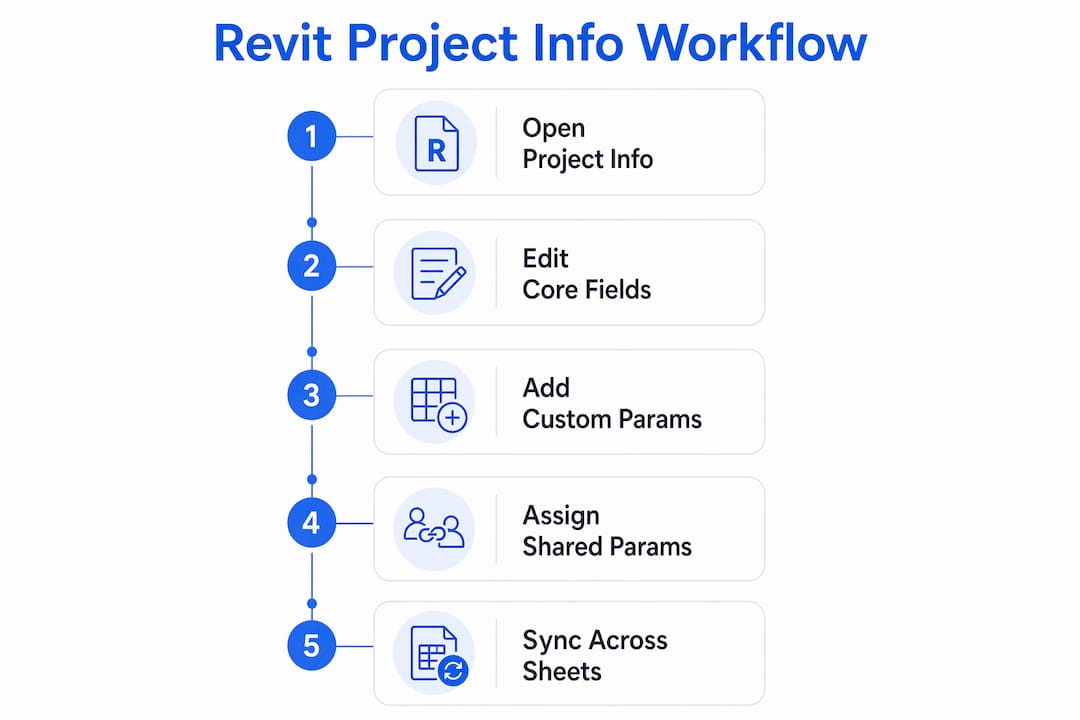
Adding a custom field, such as “Project Stage” or a client code, to your title block requires a three-step process. Skipping any step produces a label that either shows nothing or fails to update correctly.
Define the Shared Parameter. Open the Shared Parameter file via Manage > Shared Parameters. Create a new parameter group if needed, then define the new parameter with the correct data type (Text, Integer, Yes/No, etc.). Save the file.
Add a label in the title block family. Open the title block family in the Family Editor. Place a Label element where the field should appear on the sheet. In the label dialog, click Add Parameter, select the Shared Parameter you just defined, and confirm. Load the updated family back into the project.
Add the parameter to the project via Project Parameters. Go to Manage > Project Parameters > Add. Select Shared Parameter, browse to the same Shared Parameter file, and choose the parameter. Assign it to the correct category.
That last step is where most errors occur. Custom title block parameters must be assigned to the right category to display and update correctly. If the field should show the same value on every sheet, assign it to the Project Information category. If it should vary per sheet, assign it to the Sheets category.
Pro Tip: When a label updates on some sheets but not others, the category binding is almost always the cause. Check the label’s category in the title block family and confirm it matches the intended scope: Project Information for project-wide fields, Sheets for per-sheet fields.
A common real-world example: a firm adds a “Revision Stage” field to their title block and assigns it to the Sheets category. That works correctly because each sheet can carry a different revision stage. But if they add “Client Name” and assign it to Sheets instead of Project Information, they must manually update every sheet when the client name changes. Binding it to Project Information means one edit updates all 200 sheets at once.
For teams managing multiple projects, defining all reusable fields as Shared Parameters in the Project Information category creates a consistent schema across every project file. That consistency pays off when consultants, contractors, and downstream processes all rely on the same data fields.
What do Revit 2026 Sheet Collections mean for project data?
Revit 2026 introduces Sheet Collections as a new organizational layer between Project Information and individual sheet instances. This feature directly addresses a gap that large, multi-phase projects have always exposed.
Sheet Collections in Revit 2026 allow custom parameters applied at the collection level to synchronize values automatically across all sheets in that collection. Individual sheets display those values as read-only, which prevents local overrides and keeps the documentation set consistent.
The table below shows how the three levels of parameter scope interact in Revit 2026:
Parameter level | Scope | Editable on individual sheet? | Typical use case |
Project Information | Entire project | No | Client name, project number, address |
Sheet Collection | Defined sheet group | No (read-only on sheet) | Phase, volume, issue set label |
Sheet Instance | Single sheet | Yes | Sheet-specific revision, drawing title |
This hierarchy gives project teams precise control. A multi-phase hospital project, for example, can group all Phase 1 sheets into one collection and set the phase label once. Every sheet in that collection displays the correct phase automatically. Adding a new sheet to the collection inherits the value without any manual entry.
Sheet Collection parameters also work with Revit schedules and filters. Teams can filter sheet schedules by collection, which makes generating issue sets or submission packages far faster than manually tagging individual sheets.
Pro Tip: Plan your Sheet Collection structure before creating sheets in a new project. Retrofitting collections onto an existing sheet set is possible but takes more time than setting it up at the start.
What best practices improve Revit project information workflow?
Disciplined project information management separates firms that produce clean, consistent documentation from those that spend hours fixing title block errors before every submission. The following practices apply across project sizes and team structures.
Decide on parameter types before creating sheets. Shared Parameters for cross-project fields, Project Parameters for local data. That decision made at Revit project setup prevents the most common rework scenario in BIM documentation.
Audit title block category bindings on every new template. Correct category binding is the single most reliable way to prevent parameters from failing to update. Build this check into your template review process.
Centralize all reusable custom fields in a firm-wide Shared Parameter file. One file, shared across all projects, means consultants and team members always work with identical parameter definitions. This supports reliable tagging and scheduling across the entire project set.
Use Sheet Collections in Revit 2026 for any project with distinct phases, volumes, or submission sets. Manually managing phase labels on 300 sheets is error-prone. Sheet Collections remove that risk entirely.
Schedule a project information review at each major milestone. Check that client name, project number, and status fields are current before every submission. A five-minute review prevents embarrassing errors on issued drawings.
Coordinate with consultants on Shared Parameter file versions. If a consultant’s linked model uses a different version of a Shared Parameter, schedules and tags can break. Agree on a single file at project kickoff.
For professionals still building their foundation in Revit project setup, the getting started guide from S15studio covers the core workflows in practical detail.
Key takeaways
Revit Project Information is the single source of truth for project metadata, and correct parameter type selection, category binding, and Sheet Collection structure determine whether that data stays accurate across every sheet and submission.
Point | Details |
Centralized metadata control | Edit Manage > Project Information once to update all title blocks and schedules project-wide. |
Parameter type selection | Use Shared Parameters for schedulable, cross-project fields; use Project Parameters for project-local data only. |
Category binding accuracy | Bind title block labels to Project Information for project-wide fields and to Sheets for per-sheet fields. |
Revit 2026 Sheet Collections | Group sheets into collections to synchronize phase, volume, or issue labels automatically across the set. |
Early setup prevents rework | Define Shared Parameters and Sheet Collections at project start to avoid costly retrofitting later. |
Why project information discipline matters more than most architects realize
Most of the title block problems I see in practice trace back to one decision made early in the project: which parameter type to use and which category to bind it to. Architects often skip that decision because it feels like a setup detail, not a design decision. By the time the first submission is due, they are manually editing 80 sheets because one field was bound to the wrong category.
The Revit parameter system is not complicated once you understand the logic. Project Information fields are project-wide. Sheet fields are per-sheet. Shared Parameters travel across files. Global Parameters drive geometry. Those four rules cover 95% of what you will encounter. The problem is that most people learn them by breaking something first, which is an expensive way to learn on a live project.
Revit 2026’s Sheet Collections are genuinely useful for complex projects. I have seen firms manage multi-phase projects with hundreds of sheets and spend significant time on phase labels alone. Sheet Collections solve that problem cleanly. If you are on Revit 2026, setting up collections at project start costs almost nothing and saves real time at every submission.
The deeper point is that project information management is not a technical chore. It is the foundation of professional documentation. A drawing set where every title block is accurate and consistent reflects directly on the firm’s credibility. Getting that right is worth the upfront investment in understanding how the system works.
If you are working through these concepts and want structured guidance, S15studio’s Revit worksharing course covers collaborative parameter workflows in depth.
— Steve
S15studio Revit training for project information mastery
Knowing the theory behind Revit project information is one thing. Applying it confidently on a live project is another.

S15studio offers Revit courses from beginner through advanced levels, all built by Autodesk Certified Trainer Steve Fagan. The Revit Master Class covers project parameters, Shared Parameter setup, title block customization, and Revit 2026 workflows including Sheet Collections. For professionals earlier in their Revit career, the beginner to intermediate course builds the foundational skills needed for clean project documentation. Every course focuses on real-world application, not theory alone.
FAQ
What is Revit project information used for?
Revit Project Information stores core project metadata, such as project name, client, and issue date, and displays it automatically on title blocks and in schedules across the entire model.
Where do you access project information in Revit?
Project Information is accessed via Manage > Project Information in the Revit ribbon. Editing fields there updates all linked title block labels project-wide.
What is the difference between Project Parameters and Shared Parameters?
Project Parameters are stored inside a single file and cannot be shared across projects or families. Shared Parameters are stored in an external file and can be used across multiple projects, families, and team members, making them the correct choice for title block labels.
Why is my title block parameter not updating on all sheets?
The most common cause is incorrect category binding. A parameter bound to the Sheets category updates per sheet, while one bound to Project Information updates project-wide. Check the label’s category binding in the title block family to fix the issue.
What are Sheet Collections in Revit 2026?
Sheet Collections are a new parameter level in Revit 2026 that let you assign values to a group of sheets at once. Those values display as read-only on individual sheets, preventing local overrides and keeping documentation sets consistent.
Recommended
Comments