
Revit Project Browser Explained for Architects


The Revit Project Browser is the centralized, hierarchical navigation panel that displays every view, sheet, schedule, legend, family, group, and link in your project. Architects and design professionals who understand Revit project browser organization gain direct control over how their entire model is accessed, documented, and shared. The browser sits permanently on the left side of the Revit interface and acts as the single source of truth for all project content. If you cannot find a view or sheet quickly, the Project Browser is where the problem starts and where the fix lives.
What is the Revit Project Browser and how does it work?
The Project Browser is a hierarchical tree that organizes all project content into expandable branches. Each branch represents a category: Views, Legends, Schedules/Quantities, Sheets, Families, Groups, and Revit Links. You expand any branch by clicking the plus icon beside it. This structure mirrors how a well-organized drawing set works on paper, except the browser updates automatically as you add content to the model.
The browser does more than display content. Double-clicking any view opens it in the drawing area. Dragging a view onto a sheet places it directly. Right-clicking a sheet gives you options to rename, duplicate, or delete it. These interactions make the Project Browser the primary workspace for managing documentation, not just a passive list.

Revit project browser functionality extends to families and links as well. The Families branch shows every loaded family category, from doors to structural framing. The Revit Links branch lists all linked models, which is critical on large projects where architectural, structural, and MEP models are coordinated. Understanding this full scope is what separates architects who use the browser efficiently from those who waste time searching.
How does the Revit Project Browser organize project elements by default?
By default, Revit groups views by their view type. Floor plans appear under Floor Plans, ceiling plans under Reflected Ceiling Plans, and so on. Sheets are sorted by sheet number, then by sheet name. This default structure works well for small projects but becomes difficult to manage as a project grows beyond 50 or 60 sheets.
The default categories visible in the browser include:
Views: Floor Plans, Ceiling Plans, Elevations, Sections, 3D Views, Drafting Views, Legends
Schedules/Quantities: All schedule views including room schedules, door schedules, and material takeoffs
Sheets: Organized by sheet number and name
Families: Every loaded family, grouped by category
Groups: Model groups and detail groups
Revit Links: All linked Revit files
Each category uses expandable plus and minus icons. Clicking the minus icon collapses a branch and reduces visual clutter. This is a small habit that pays off on large projects where the browser can contain hundreds of views. The default hierarchy is logical, but it does not reflect how most architectural offices actually organize their documentation by discipline, package, or phase.
Legends sit within the Views branch by default, which surprises many architects. Legends are not sheets and cannot be placed on multiple sheets without duplication unless you understand this distinction. Recognizing where each element type lives in the default structure is the foundation of effective Revit project organization.
What customization options does the Revit Project Browser offer?
The Browser Organization dialog is where real control begins. You access it by right-clicking the Views header in the Project Browser and selecting Browser Organization. This dialog lets you create named organization schemes and apply them to views or sheets independently.
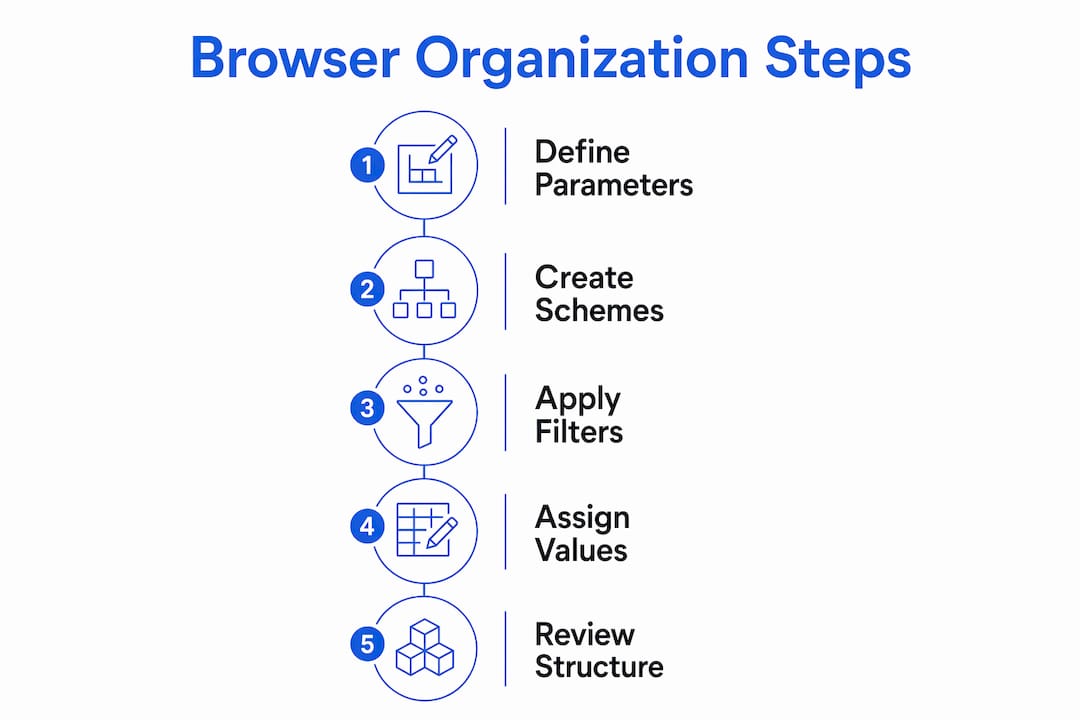
Each scheme supports grouping at up to three levels. A typical architectural setup might group views first by Discipline, then by Sub-Discipline, then by View Type. The result is a tree that mirrors your office’s documentation structure rather than Revit’s default categories. Here is how to build a custom organization scheme:
Right-click the Views header in the Project Browser and select Browser Organization.
Click New to create a scheme and give it a descriptive name, such as “By Discipline.”
In the Grouping and Sorting tab, set Group By to your first parameter, such as “Discipline.”
Add a second grouping level using “Then By,” such as “Sub-Discipline.”
Add a third level if needed, such as “View Type.”
Switch to the Filtering tab to apply up to three AND rules to limit which views appear.
Click OK and select the new scheme from the list to apply it.
Custom project parameters like “Package” or “Discipline” are the most powerful tools for organizing views and sheets by project phase or workflow stage. These parameters are not built into Revit by default. You create them through Manage > Project Parameters, set them to apply to views or sheets, and then assign values to each view or sheet manually or through View Templates.
Filters in the Browser Organization dialog use a maximum of three AND rules to isolate subsets of data. A filter might show only views where Discipline equals “Architectural” and Phase equals “Design Development.” This keeps the browser focused on the work at hand. The risk is that active filters hide views without any visible warning, which causes confusion for team members who do not know a filter is on.
Pro Tip: Name your Browser Organization schemes clearly, such as “Arch by Phase” or “Sheets by Package,” so every team member can identify and switch between them without guessing.
What are common challenges with the Project Browser?
The most frequent problem architects encounter is the unassigned parameter value issue. When a view or sheet has no value assigned to the parameter used for grouping, Revit places it in a category labeled “???”. Many professionals assume this means data has been lost. It has not. The “???” category simply signals that the parameter field is empty for those items. Assigning a value moves the item to the correct group immediately.
A second challenge is filter confusion. Filters that hide views are stored in the project file, not in user preferences. A team member who sets a filter to show only structural views will leave that filter active for the next person who opens the central model. The result is views that appear to be missing. The fix is to check the Browser Organization dialog first before assuming a view has been deleted.
Common challenges and their solutions include:
Inconsistent parameter assignment: Views with no discipline or phase value fall into “???” and create clutter. Assign values to every view before sharing the model.
Filters hiding views: Active filters make views invisible without warning. Always check Browser Organization when a view cannot be found.
Working views mixed with sheet views: Placing working or reference views on sheets by accident creates documentation errors. Separate them using a parameter value like “Working” versus “Sheet.”
No organization in the project template: Teams that start projects without a defined browser scheme rebuild organization from scratch on every project.
Separating working views from sheet views is one of the most practical habits an architect can build. A simple parameter value of “Working” keeps reference views out of the sheet set and prevents accidental placement on issued drawings.
Browser organization settings are stored in the project file, not in user preferences. This means the scheme you build is available to every team member who opens the file. It also means that if no scheme is defined in the template, every new project starts with the default structure. Embedding your office’s browser configuration in the project template is the single most effective step a BIM manager can take to enforce consistency.
View Templates assigned project parameters automatically organize views into the correct browser folders without manual editing. When a View Template carries a Discipline value of “Architectural,” every view that uses that template inherits the value. This automation removes the most common source of browser clutter on large projects.
How to apply practical Project Browser organization strategies
Practical organization starts with naming conventions. Numeric prefixes force logical ordering in the browser because Revit sorts text alphabetically. A package named “01 Site” appears before “02 Substructure,” which appears before “03 Superstructure.” Without prefixes, packages sort alphabetically and the sequence breaks down on complex projects.
Embedding a defined Package parameter helps organize multiple working phases in large architectural projects. Assigning numeric prefixes to package names sequences views logically rather than alphabetically. This approach mirrors how construction document sets are organized and makes the browser readable to anyone who opens the file.
The table below compares two common organization approaches for architectural projects:
Approach | Best for | Grouping levels | Key parameter |
By discipline | Multi-discipline projects | 3 (Discipline, Sub-Discipline, Type) | Discipline |
By package | Phased or staged delivery | 2–3 (Package, Discipline, Type) | Package |
A filter for views “not on sheets” is one of the most useful tools for project management. Create a filter that shows only views where the “Sheet Number” parameter is empty. This gives you an instant list of every view that has not been placed on a sheet, which is critical before issuing a drawing set. Architects who use this filter regularly catch missing views before they become coordination problems.
Using custom project parameters for browser organization allows the Project Browser to align with unique office workflows. A firm that delivers projects in packages can create a “Package” parameter with values like “01 Planning,” “02 Tender,” and “03 Construction.” The browser then mirrors the firm’s delivery process exactly.
Pro Tip: Create a dedicated “ZZ Working Views” package or discipline value and assign all reference, coordination, and working views to it. This pushes non-issued views to the bottom of the browser and keeps your sheet views clean and easy to find.
Key takeaways
The Revit Project Browser is the most direct tool for controlling project organization, and its full value only appears when custom parameters, View Templates, and browser schemes are embedded in the project template from day one.
Point | Details |
Browser scope | The Project Browser displays views, sheets, schedules, families, groups, and links in one hierarchical panel. |
Custom parameters | Parameters like “Discipline” and “Package” group views logically and mirror office documentation standards. |
Template embedding | Storing browser organization in the project template enforces consistency across every team member. |
The “???” category | Unassigned parameter values cause items to appear in “???” — assign values to move them to the correct group. |
View Templates automate organization | Assigning parameters through View Templates removes manual work and reduces browser clutter on large projects. |
Why the Project Browser is worth your full attention
Most architects treat the Project Browser as a passive list. That is the wrong approach. After years of working with Revit and training professionals through S15studio, I have seen the same pattern repeatedly: firms that invest time in browser organization at the template stage finish projects faster and with fewer coordination errors than those who leave it at the default.
The detail that most professionals miss is the relationship between View Templates and browser parameters. When you assign a Discipline value inside a View Template, every view that uses that template is automatically sorted into the right browser folder. You never touch the browser manually for those views again. That is not a minor convenience. On a project with 300 views, it is the difference between a usable model and a chaotic one.
The other mistake I see constantly is treating the “???” category as a problem to ignore. It is actually the most useful diagnostic tool in the browser. If views are landing in “???”, your parameter assignment process has a gap. Fix the gap in the template, not view by view after the fact.
My honest recommendation: spend one hour setting up browser organization before you start any new project. Define your parameters, build your View Templates, and embed the scheme in your template file. That one hour saves ten hours of reorganization later. The Revit worksharing environment makes this even more critical because every team member works from the same central model and inherits whatever organization you set up.
— Steve
Take your Revit skills further with S15studio
Understanding the Project Browser is one piece of a much larger Revit skill set. S15studio offers structured courses that take architects and design professionals from the basics of the interface through to advanced project management and documentation workflows.

Whether you are new to Revit or looking to sharpen your organizational skills, the beginner Revit course at S15studio gives you a practical foundation built around real project workflows. For professionals ready to go deeper, the Revit Master Class covers advanced features including browser customization, View Templates, and team collaboration. Every course is built by Autodesk Certified Trainer Steve Fagan and designed to deliver skills you can apply on your next project immediately.
FAQ
What does the Revit Project Browser display?
The Project Browser displays all project content including views, sheets, schedules, legends, families, groups, and linked Revit files in a single hierarchical tree panel.
How do I customize the Project Browser organization in Revit?
Right-click the Views or Sheets header in the Project Browser, select Browser Organization, and create a scheme using the Grouping and Sorting tab. You can group by up to three levels using system or custom project parameters.
Why are my views showing under “???” in the Project Browser?
Views appear under “???” when the parameter used for grouping has no assigned value. Assign the correct parameter value to each view and it will move to the appropriate group automatically.
How do I stop filters from hiding views in the Project Browser?
Open the Browser Organization dialog and check the Filtering tab for any active filter rules. Removing or adjusting the filter rules restores visibility of hidden views without affecting the model data.
Where are Project Browser organization settings stored in Revit?
Browser organization settings are stored in the project file itself, not in user preferences. Embedding your organization scheme in the project template applies it automatically to every new project your team creates.
Recommended
Comments